Connect a Grandstream HandyTone ATA to a NumberGroup SIP trunk
Put an existing analogue phone, fax machine or cordless base on a NumberGroup SIP trunk with a Grandstream HandyTone ATA (HT801, HT802, HT812). Real FXS-port config: sip.numbergroup.com Primary SIP Server, T-AAAAAA-NNN SIP User ID and Authenticate ID, codecs, T.38 fax and the registration pitfalls.
A Grandstream HandyTone ATA (HT801, HT802 or HT812) lets you keep an existing analogue phone, cordless base, fax machine or alarm dialler and put it on a NumberGroup SIP trunk — the analogue device plugs into the FXS port, the ATA registers to us over the internet. This is the usual way to carry an old analogue line across the PSTN / ISDN switch-off without replacing the handset. The HT801 has one FXS port, the HT802 two, the HT812 eight; the settings below apply to each port.
For a desk phone or fax where a human reads the Caller ID, ask us to set Send Numbers As to "United Kingdom" so it lands in the familiar 01214001262 format.
The credentials and settings your device needs to register against the NumberGroup SIP trunk are:
- Domain / registrar:
sip.numbergroup.com - Authorisation ID (also called SIP username): looks like
T-AAAAAA-NNNe.g.T-102377-001 - Password: a random string we generate per trunk
- User-Agent Type: we set this our side to match your device (e.g. 3CX Phonesystem, DDI in R-URI (Asterisk), RFC3261 Standard Trunk) so DDIs present in the format your equipment expects
- Send Numbers As: also set our side — pick the format that works best for your platform:
- International (+xx) — true E.164 (
+441214001262) for 3CX, Cisco, Yealink and most modern PBXs - International (xx) — bare digits (
441214001262) for Asterisk / FreeSWITCH dialplan regex - United Kingdom — UK format (
01214001262) for direct-register desk phones / softphones where humans read the Caller ID
- International (+xx) — true E.164 (
- Allowed IPs (optional): for an extra security layer we can lock the trunk to only register from your office IPs — tell us which when you ask
Once you have the credentials, the rest of this guide walks through the device-side config. If you'd rather skip the config altogether, ask us — we'll do it for you on most common PBXs and phones.
Field mapping
Browse to the ATA's web UI, open the FXS Port tab (FXS Port 1 / FXS Port 2 on the HT802), set Account Active to Yes, then fill in the fields below. Grandstream owns the click-path and keeps it current — the table is the part that's specific to your NumberGroup trunk.
Find the ATA's IP address (dial *** then 02 on the attached analogue phone to hear it), browse to it from a computer on the same network, log in as admin, then open the FXS Port tab.
Full navigation is in the manufacturer's own guide: Grandstream HT80x Administration Guide (grandstream.com). We keep the click-path with them so it stays current — the table below is the part that's specific to your NumberGroup trunk.
| NumberGroup value | Grandstream HT801 / HT802 / HT812 field |
|---|---|
| sip.numbergroup.com | Primary SIP Server |
| UDP | SIP Transport |
| T-AAAAAA-NNN | SIP User ID |
| T-AAAAAA-NNN | Authenticate ID |
| your trunk password | Authenticate Password |
| Yes | SIP Registration |
| No | NAT Traversal (NumberGroup uses symmetric RTP — no STUN) |
| RFC2833 | Preferred DTMF method |
| PCMU, PCMA, G722, G729 | Preferred Vocoder (Vocoder 1–4) |
Split-field note: the HandyTone separates SIP User ID from Authenticate ID. On a NumberGroup trunk both take the same value — your T-AAAAAA-NNN.
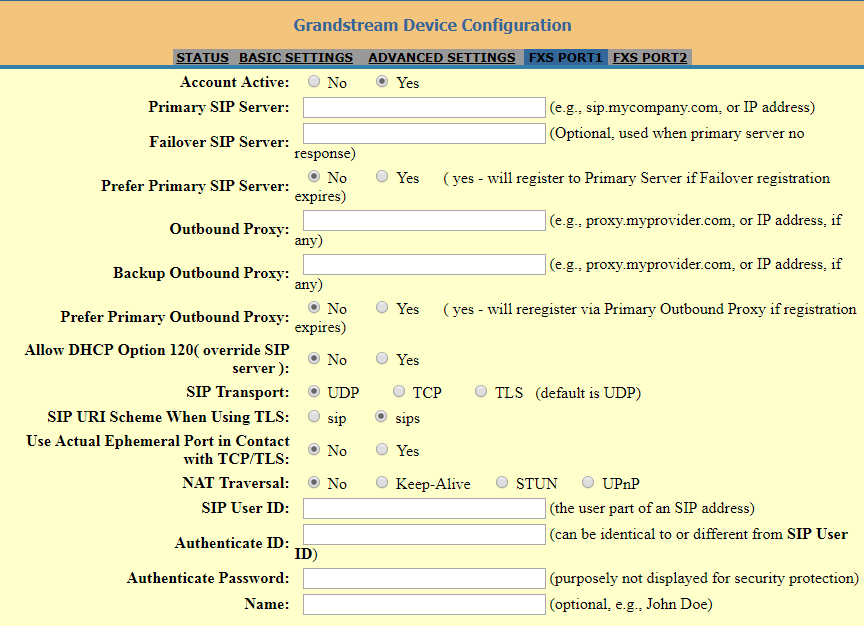
sip.numbergroup.com in Primary SIP Server, and your T-AAAAAA-NNN in both SIP User ID and Authenticate ID. The values pictured are the vendor's example — use the ones from the email we send you.Verify
- The FXS port LED on the front of the ATA goes solid (registered)
- Lift the attached handset — you should hear dial tone
- Dial your mobile to confirm Caller ID; ring your DDI from a mobile to confirm inbound
- We can confirm the trunk has registered our side — ring us or check the trunk-live email
If it won't register
- Wrong SIP User ID / Authenticate ID / Authenticate Password — re-check against the trunk email (a stray trailing space in the password is a common culprit)
- Primary SIP Server must be
sip.numbergroup.comexactly - Outbound UDP 5060 blocked on your network firewall
- One-way audio: set NAT Traversal to No, disable SIP ALG on the router
- Outbound rejected with 403: your Default CLI on the trunk isn't one of your DDIs — fix on the trunk
Sending faxes
For a fax machine on the FXS port, set the codec to PCMU/PCMA only (disable G722 and G729) and enable T.38 (FoIP) in the FXS Port settings. Fax over IP is sensitive to packet loss — for high fax volumes ask us about a dedicated fax option.
Set fraud caps before going live
A single analogue line should never place more than 1–2 simultaneous calls. Ask us to set Fraud Detection Simultaneous Calls to 2 and a sensible Daily Spend ceiling. See our telecom fraud guide.
Keep your analogue kit, lose the old line
Members move existing analogue phones, fax machines and cordless bases onto a NumberGroup SIP trunk via a Grandstream ATA — we'll provision one you already own at no extra charge, or supply one at distributor cost.