Connect a Panasonic KX-NS PBX to a NumberGroup SIP trunk
Add a NumberGroup SIP trunk to a Panasonic KX-NS700, KX-NS1000 or KX-NSX PBX via the V-SIPGW16 virtual card in the Maintenance Console. Real config: sip.numbergroup.com SIP Server, T-AAAAAA-NNN User name and Authentication ID, the activation-key prerequisite, DDI routing, CLI and registration pitfalls.
This is the working setup for adding a NumberGroup SIP trunk to a Panasonic KX-NS platform (KX-NS700, KX-NS1000) and the KX-NSX series. Panasonic carries SIP trunks on a virtual gateway card called the V-SIPGW16, configured from the Unified Maintenance Console. The field labels are the same across NS700, NS1000 and NSX — only the slot layout differs.
Before you start — the V-SIPGW16 card and DSP
Unlike a desk phone, the KX-NS can't take a SIP trunk out of the box. Two things must be in place first:
- V-SIPGW16 virtual SIP gateway card — installed and activated. The first batch of SIP channels is enabled with a Panasonic activation key (KX-NSM-series); more channels need more key value. Your Panasonic installer or dealer supplies these.
- DSP resource (the DSP card / VoIP-DSP on the NS700, or the built-in resource on the NS1000/NSX) with enough channels for your concurrent calls.
If you don't have the V-SIPGW16 activated, that's a licensing job for your Panasonic dealer before any of the below will work. If you'd rather not deal with cards and keys at all, our hosted Membership PBX gives you the same trunk with none of the licensing — see the bottom of this guide.
When you ask us to set up the trunk, request Send Numbers As set to "International (xx)" — bare digits (44…), which is the format the KX-NS DDI/DID table expects (it stores numbers as 44 + the number with the leading 0 removed).
The credentials and settings your device needs to register against the NumberGroup SIP trunk are:
- Domain / registrar:
sip.numbergroup.com - Authorisation ID (also called SIP username): looks like
T-AAAAAA-NNNe.g.T-102377-001 - Password: a random string we generate per trunk
- User-Agent Type: we set this our side to match your device (e.g. 3CX Phonesystem, DDI in R-URI (Asterisk), RFC3261 Standard Trunk) so DDIs present in the format your equipment expects
- Send Numbers As: also set our side — pick the format that works best for your platform:
- International (+xx) — true E.164 (
+441214001262) for 3CX, Cisco, Yealink and most modern PBXs - International (xx) — bare digits (
441214001262) for Asterisk / FreeSWITCH dialplan regex - United Kingdom — UK format (
01214001262) for direct-register desk phones / softphones where humans read the Caller ID
- International (+xx) — true E.164 (
- Allowed IPs (optional): for an extra security layer we can lock the trunk to only register from your office IPs — tell us which when you ask
Once you have the credentials, the rest of this guide walks through the device-side config. If you'd rather skip the config altogether, ask us — we'll do it for you on most common PBXs and phones.
Step 1: V-SIPGW16 shelf property
In the Maintenance Console go to 1.Configuration → 1.Slot, click Virtual, hover over V-SIPGW16 and click Ous (take it out of service), then open Shelf Property → Main tab:
- SIP Client Port Number:
5060(the default is 35060 — change it to 5060) - NAT Traversal: set to Fixed IP Addr. if the PBX is behind a router, and enter your office's public IP in NAT – Fixed Global IP Address
- NAT – Keep Alive Packet Sending Ability: Enable, type Blank UDP (keeps the NAT pinhole open)
Click OK. Save system data and restart the PBX if it prompts you after the port change.
Step 2: Port Property — the trunk details
Hover over V-SIPGW16 → Ous → Port Property, then work through the tabs.
[Main] tab
- Channel Attribute: Basic Channel (on the first port; set further ports to Additional Channels if you bought more than one channel)
- Provider Name: NumberGroup (any logical name)
- SIP Server Location – Name:
sip.numbergroup.com - SIP Server Port Number:
5060 - SIP Service Domain:
sip.numbergroup.com - Subscriber Number: not required
[Account] tab
- User name:
T-AAAAAA-NNNfrom the email we send you (e.g.T-102377-001) — enter it on its own, without any@sip.numbergroup.comsuffix - Authentication ID:
T-AAAAAA-NNN— the same value as the User name - Authentication Password: your trunk password from the email we send you
Why User name and Authentication ID match:on a NumberGroup trunk they're always the same value — your T-AAAAAA-NNN. Don't append the domain to either field; the KX-NS adds it from the Main tab.
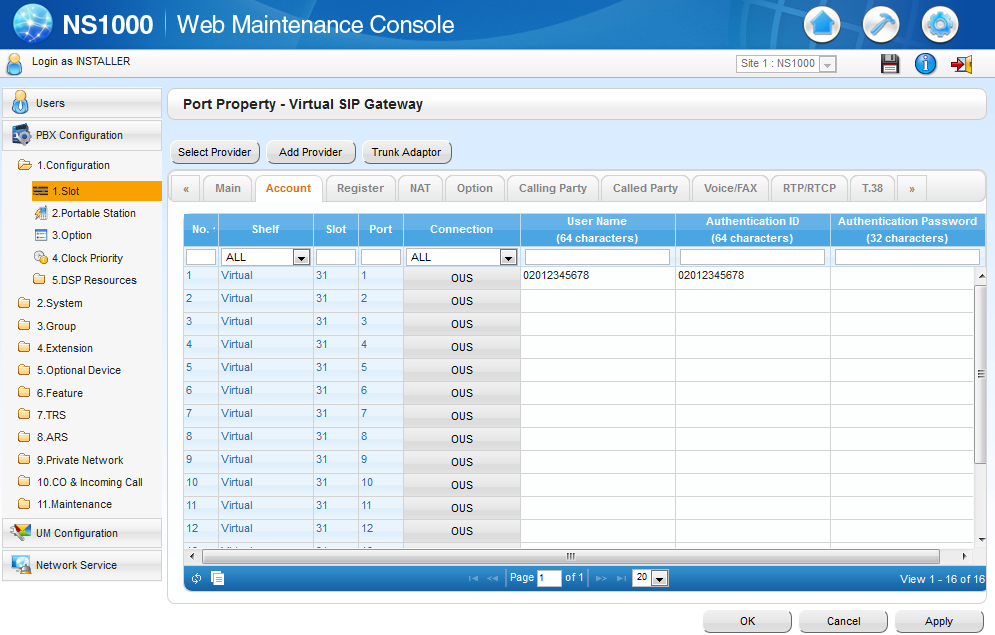
T-AAAAAA-NNN in both User Name and Authentication ID, and your trunk password in Authentication Password. The example number shown is the vendor's — use the values from the email we send you, not what's pictured.[Register] tab
- Register Ability: Enable
- Register Interval:
3600 - Registrar Server: leave blank — it defaults to the SIP server from the Main tab (NumberGroup uses one host for proxy and registrar)
Click Apply, then put the card back in service: hover over V-SIPGW16 → Ins.
Step 3: inbound DDI routing
Go to CO & Incoming Call → 3. DDI/DID Table:
- DDI/DID Number: enter each number as 44 + the number with the leading 0 removed (e.g.
01214001262→441214001262) - DDI/DID Name: optional label
- DDI/DID Destination: the extension, ring group or IVR that should answer it
Step 4: outbound caller ID
On the [Calling Party] tab of the Port Property, set From Header – User Part to PBX-CLIP, then give each extension a valid CLI under 4.Extension → 1.Wired Extension → 1.Extension Settings → ISDN CLIP. The CLI must be one of your NumberGroup DDIs — an invalid CLI is the usual cause of an outbound 403.
Step 5: verify registration
- In the Maintenance Console, the V-SIPGW16 port shows registered once the card is back In Service (INS)
- We can confirm the trunk has registered our side — ring us or check your email for the "trunk live" confirmation
- Place a test call out, and ring one of your DDIs from a mobile to test inbound
When it doesn't work
Card won't register
- Wrong User name, Authentication ID or Password — check them against the email we sent when we set up the trunk (a stray trailing space in the password is a common culprit)
- You appended
@sip.numbergroup.comto the User name or Authentication ID — remove it, those fields take the bareT-AAAAAA-NNN - SIP Client Port Number still on 35060 — change it to 5060
- V-SIPGW16 still in Ous — put it back Ins
Outbound fails with 403
The CLI an extension presents isn't one of your NumberGroup DDIs. Set the ISDN CLIP to a valid DDI you own.
One-way or no audio
- Confirm the NAT – Fixed Global IP Address is your real public IP
- Open the RTP port ranges on your router to the DSP (Panasonic's guide lists the exact UDP ranges per DSP card)
- Disable SIP ALG on the router — it rewrites SIP and breaks the media path
Set the fraud caps before going live
Ask us to set the trunk's Fraud Detection Simultaneous Calls and a Daily Spend ceiling a little above your real peak. If a compromised extension tries to dial through out of hours, the trunk auto-disables before the bill runs up. See our UK telecom fraud guide.
Source: the device navigation in this guide follows Panasonic — KX-NS1000 SIP Trunk Setup Reference Guide (PSCEU, UK). We keep the click-path with the manufacturer so it stays current — the NumberGroup trunk values above are the part specific to your account.
Skip the cards and activation keys
Don't want to license a V-SIPGW16 and DSP? Our hosted Membership PBX gives you the same SIP trunk, unlimited UK numbers and every smart feature for £149/mo flat — no Panasonic licensing to buy.